
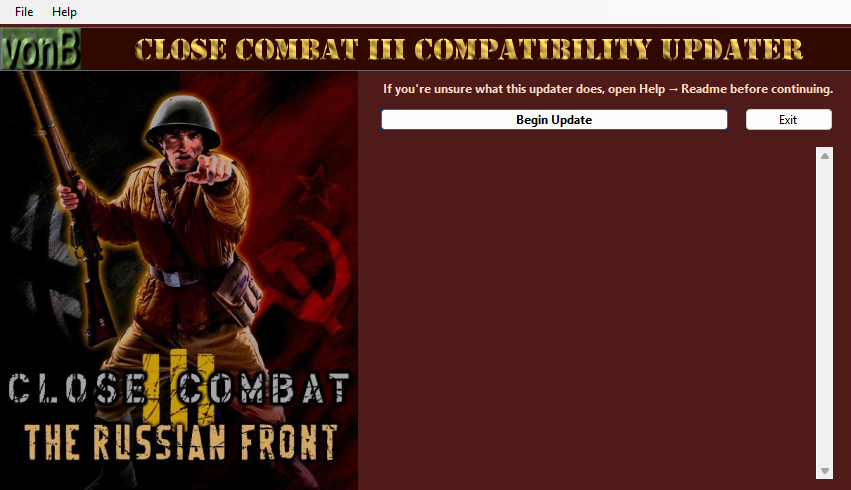

CCIII Compatibility Updater - Guide
Step 1: Download the Application
Steps
Click to open in a new Tab or LightBox
https://vonb.thewizard.org/downloads
Select the Compatibility Tab
Click the CCIIICompUpdate Button to download the ZIP archive

The CCIIICompatibilityUpdater.zip ZIP archive
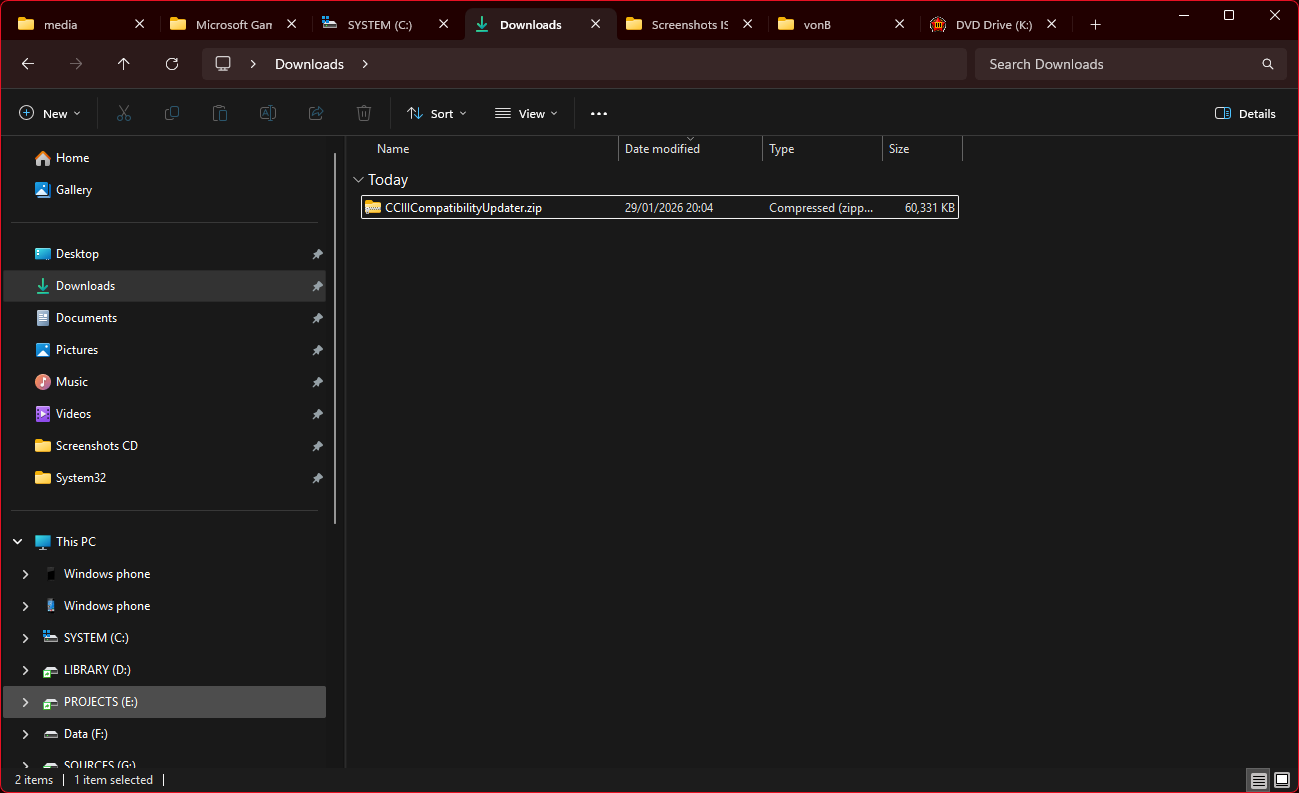
Extract the CCIIICompatibilityUpdater.exe Application from the ZIP archive
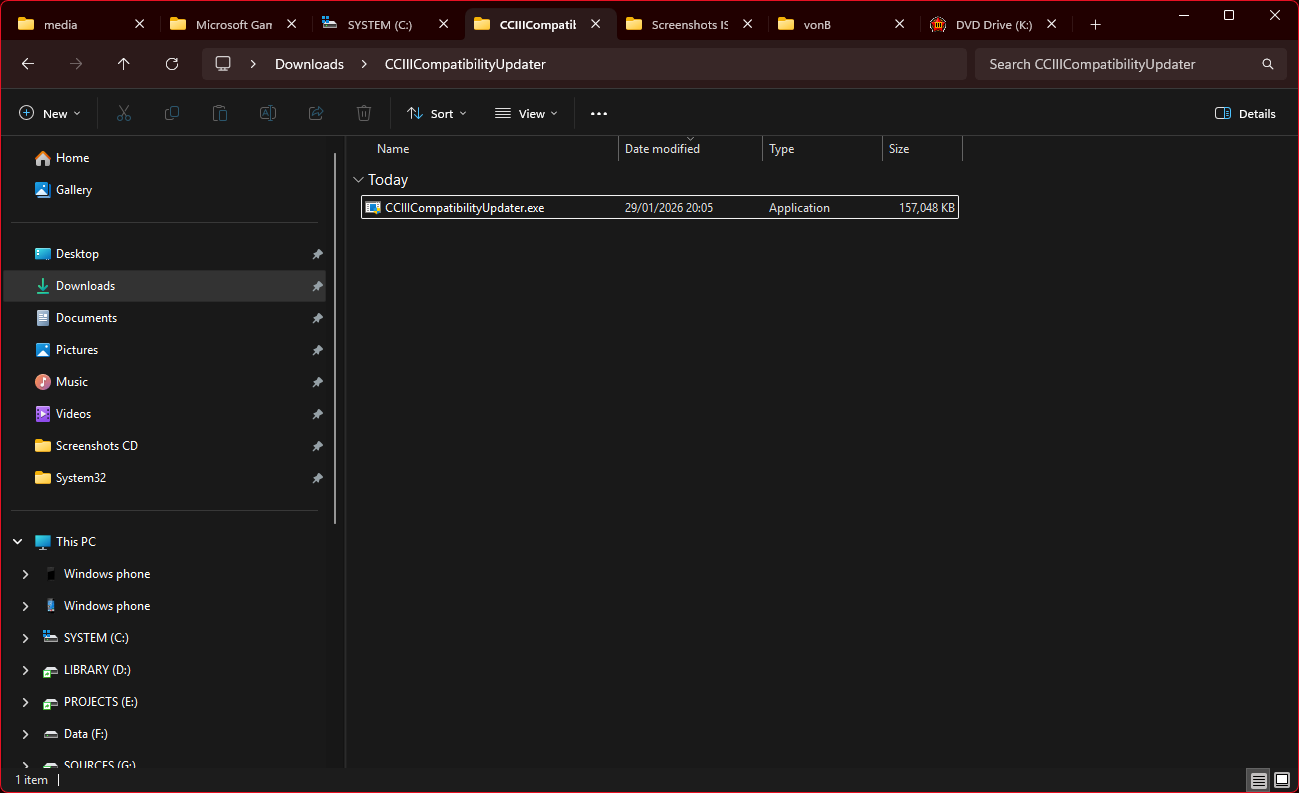
Place CCIIICompatibilityUpdater.exe in your Close Combat III game folder
The folder containing CC3.exe
The default installation path depends on whether you installed the Microsoft Retail CD version or the GOG digital release. If you chose a custom installation path, place the updater there.

Step 2 — Run the Application
It is recommended that you close all other applications before running the updater, including Close Combat III itself.
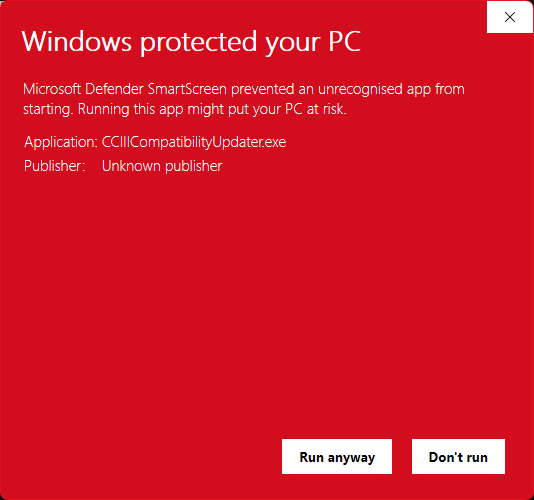
If Microsoft Defender SmartScreen blocks the file:
Click “More info”
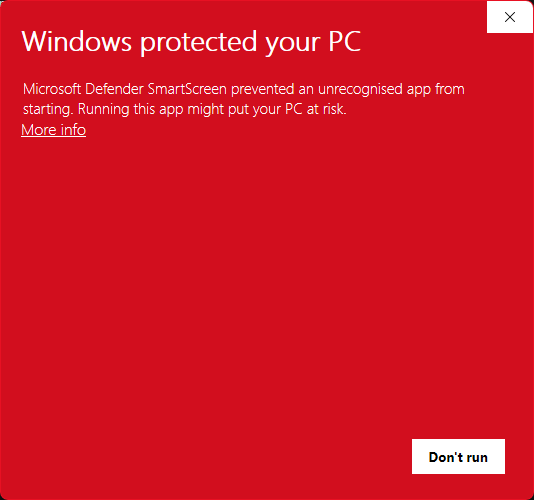
Confirm the file name is CCIIICompatibilityUpdater.exe
Click “Run anyway”
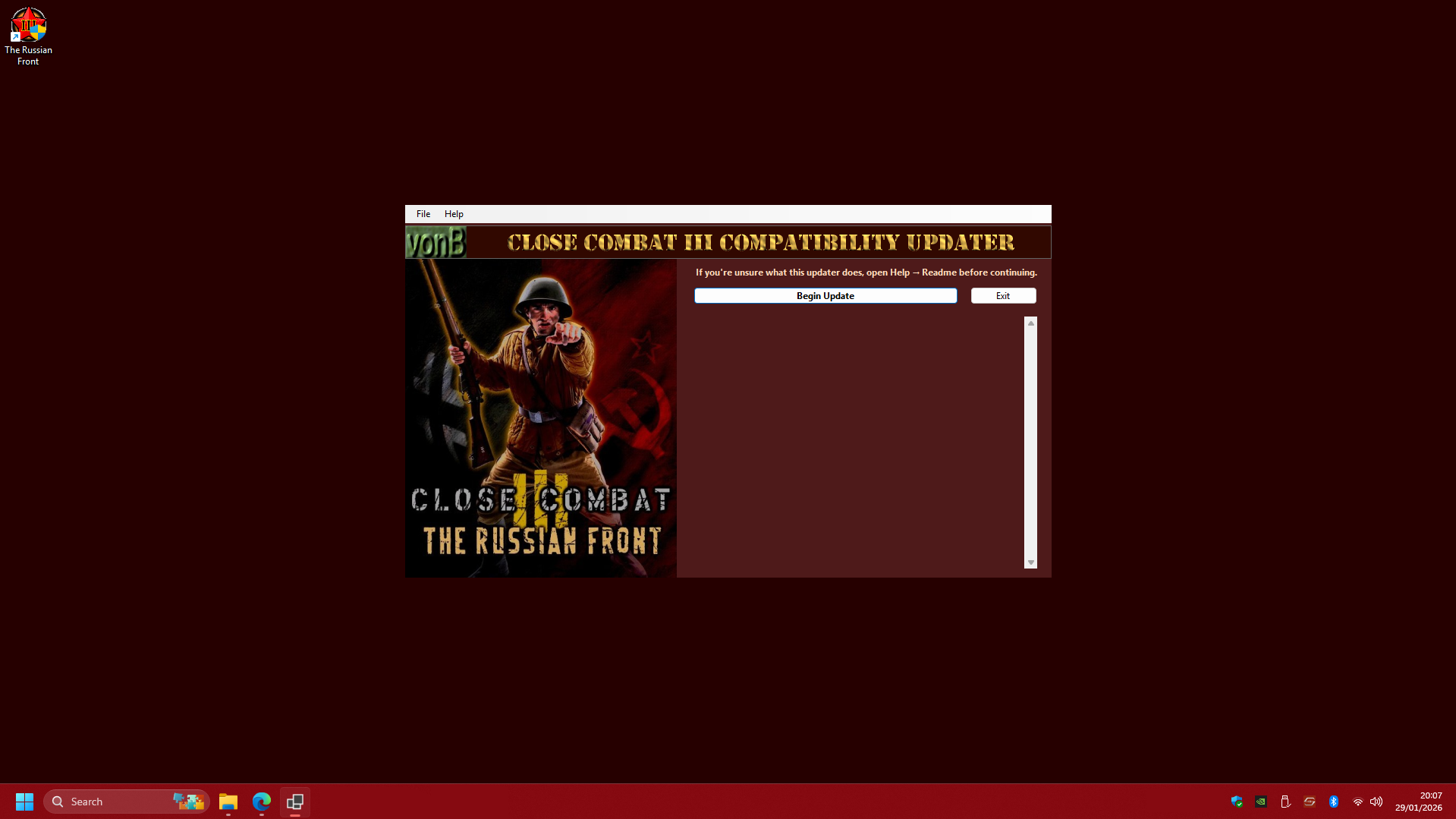
The updater window will open.
Click “Begin Update”
Note: If you have installed the GOG release, you will not get this prompt and will skip this step.
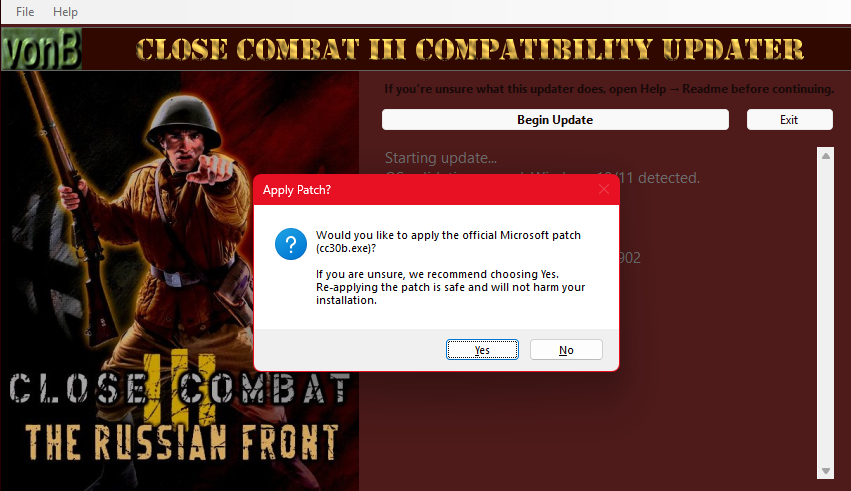
If the updater detects an unpatched Microsoft Retail installation, it will prompt you to run the official patch.
Click “Yes” (recommended)
Note: If you have installed the GOG release, you will not get this prompt and will skip this step.
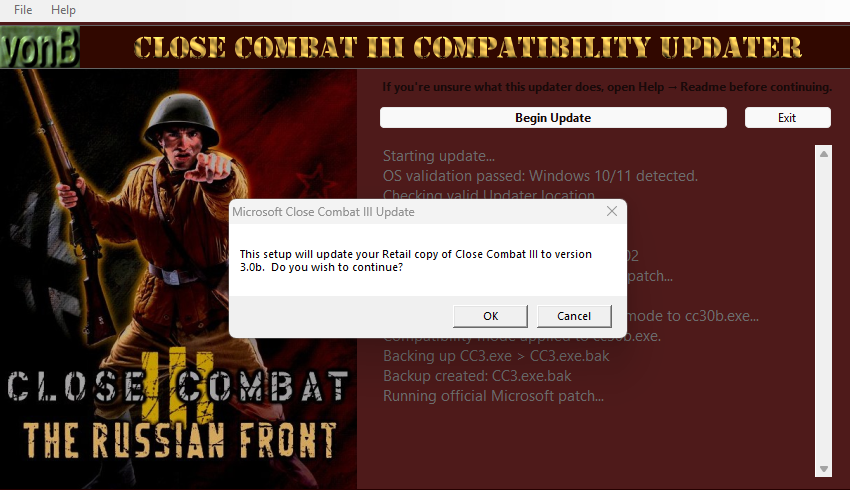
The Microsoft patch program will run
Click “OK” when prompted
Note: If you have installed the GOG release, you will not get this prompt and will skip this step.
When the patch completes, click “OK” again
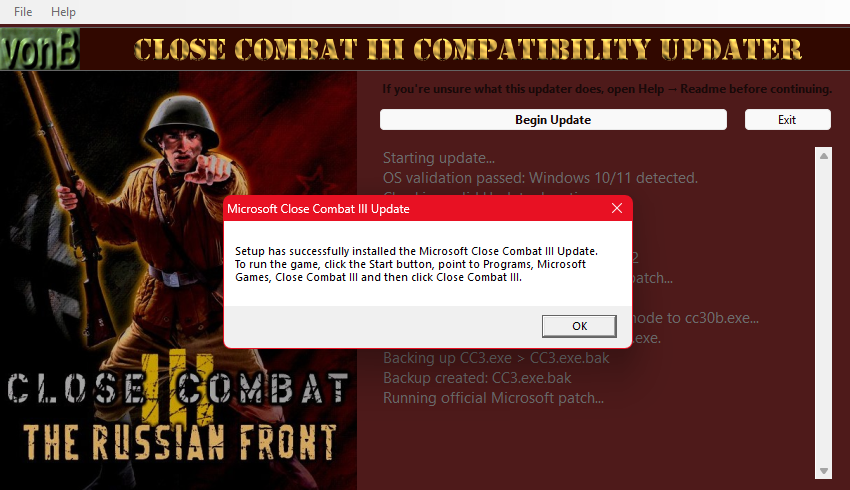
Note: If you have installed the GOG release, you will not get this prompt and will skip this step.
The updater will apply Compatibility Mode to the game’s uninstaller (required for it to run correctly)
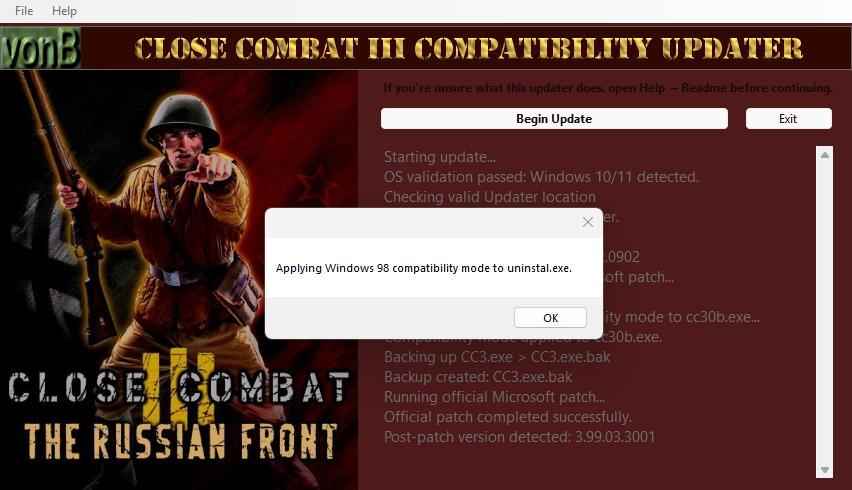
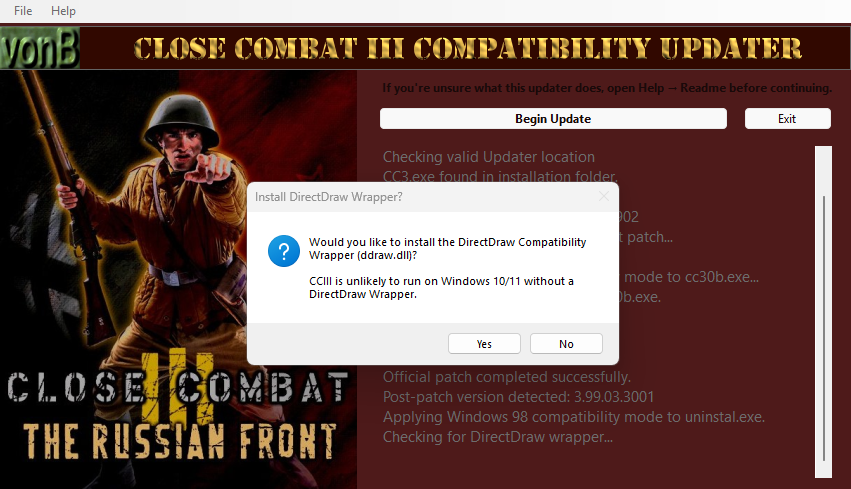
The updater will then prompt you to install the DirectDraw Wrapper
Click “Yes” (the game will not run without it)
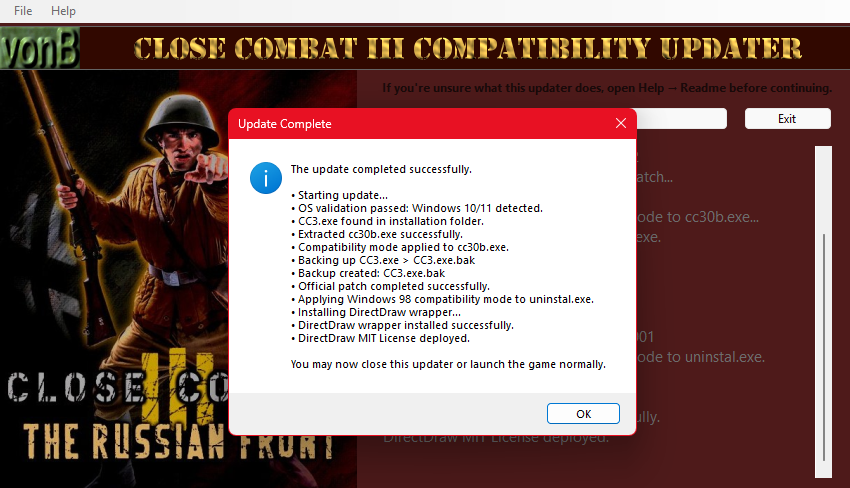
When the process is complete, a summary message will appear.
Click “OK”
Click “Exit” to close the updater.
Step 3 — After the Update
Your game is now fully configured to run on Windows 10 or Windows 11
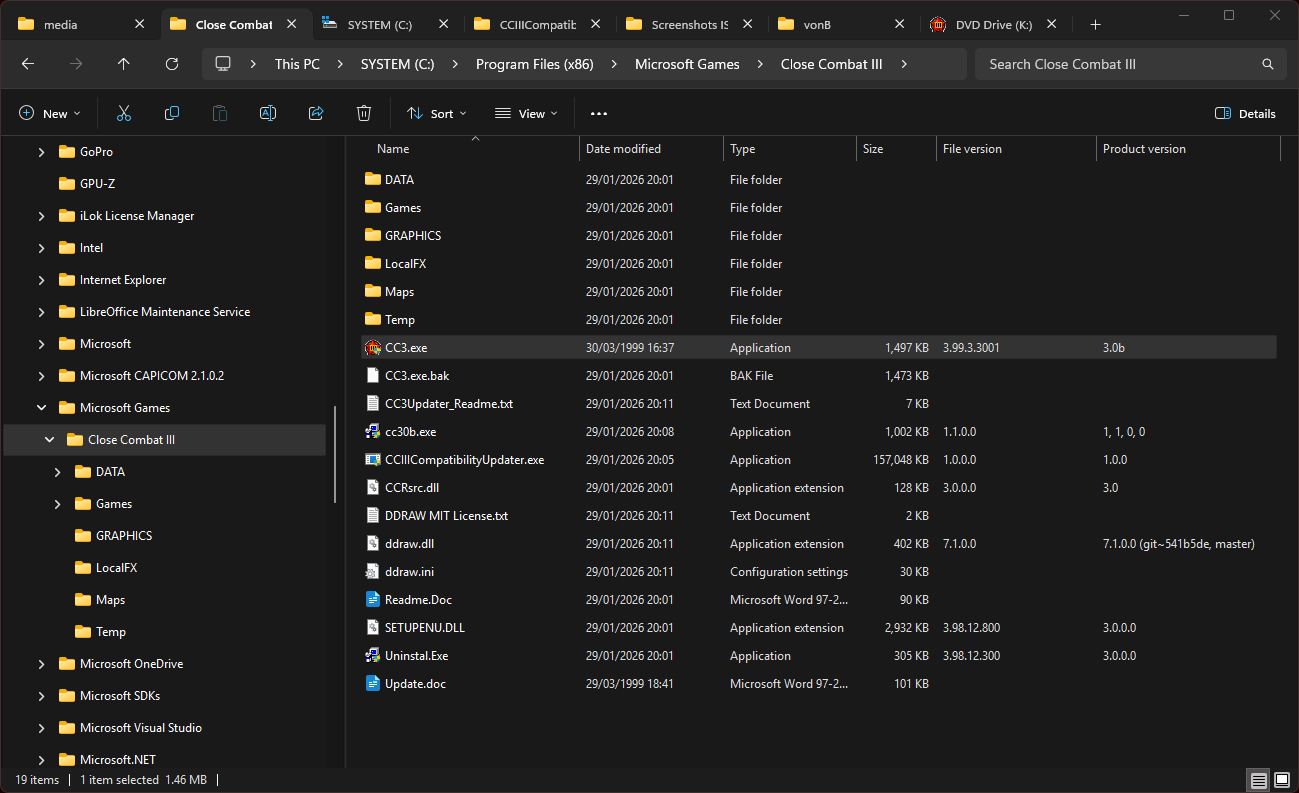
Your CCIII folder will now contain several additional files:
cc3.exe.bak — Backup of the original CC3.exe
CC3.Updater_Readme.txt — Detailed updater documentation
cc30b.exe — Official Microsoft CCIII patch
CCIIICompatibilityUpdater.exe — The updater itself
DDRAW MIT License.txt — License for the DirectDraw wrapper
ddraw.dll — DirectDraw wrapper (required)
ddraw.ini — Wrapper configuration file (required)Files
you must keep:
ddraw.dll
ddraw.ini
These are essential for the game to run
After uninstalling the game:
If you run the CCIII uninstaller, the game folder may remain along with the updater files. These can be deleted manually.
The updater also creates an update.log file in: %LocalAppData%\CCIIICompatibilityUpdater. This log is optional and can be safely deleted.

Troubleshooting
- The updater must be placed in your game folder.
- If the game asks for the CD after a “Full” install, run the game as Administrator
You can also set this permanently in CC3.exe → Properties → Compatibility.
Support
If you encounter issues or have feedback, we’d like to hear from you
Website: https://vonb.thewizard.orgEmail: vonb@thewizard.org
Disclaimer
This updater is provided free of charge and without warranty.
All changes made by the updater are local to your Close Combat III installation and are fully reversible.
While the tool has been tested on both Microsoft and GOG releases, you use it at your own discretion.
The author cannot accept responsibility for any unexpected issues, data loss, or system problems arising from its use.